
Customize Your SMP With NodeCrest World Settings
Find difficulty, PvP, access and advanced controls in World Settings. Save your choices, understand when they apply and give your world a useful greeting.
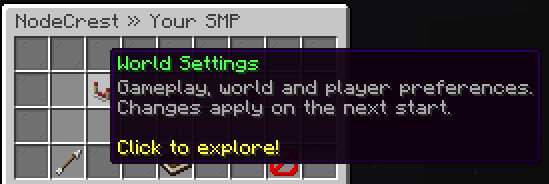
Your SMP should suit the people playing on it. NodeCrest's World Settings brings the available controls into a few categories, so you can adjust your world from the lobby.
Find the right category
Use /menu, open SMP, then choose World Settings. Start with the category closest to what you want to change:
- Gameplay: difficulty, game mode and combat options such as PvP.
- World: creature, structure and Nether-related options.
- Players & Access: player limits, whitelist and chat controls.
- Advanced: optional controls such as simulation and command blocks.
The settings shown can depend on your world's version and available configuration. Read an item's description rather than assuming every switch changes the world in the same way.
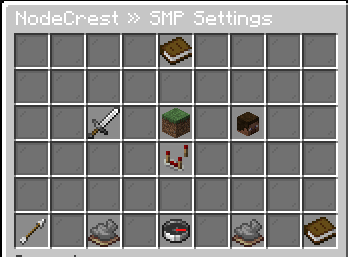 World Settings groups controls by what you want to change.
Save first, then apply on the next start
Changing a menu item edits your choices. Select Save Settings to keep them. Saved changes are applied on your world's next start, so a running world will not necessarily change immediately.
If you want to use your changes now, tell your players, save the settings, use Save & Stop World, and wait for the world to finish stopping before waking it again. Let startup finish before joining.
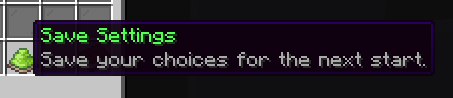 Save your choices so they can be applied on the next world start.
Give your world a greeting
Find World Greeting in the Advanced category. Keep it short and helpful: “Welcome to Oakvale — build together and ask before borrowing” tells visitors more than a generic server name.
The greeting can appear in world listings and in the Friends tooltip when the owner is online and the viewer has visit permission. It is a description, not an access control. Use World Visits and the appropriate access settings to control who can join.
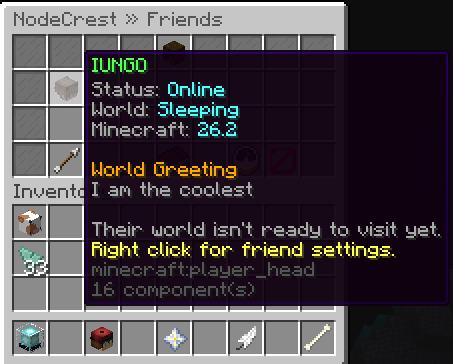 A short greeting helps invited players recognize your world.
Change one thing at a time
For your first world, focus on difficulty, PvP and who may visit. Leave advanced settings alone until you have a reason to change them. Not every configuration change affects existing terrain; enabling an option is not a promise to rebuild areas you have already explored.
Private-world gameplay rules are yours to manage, while the NodeCrest network rules continue to apply. If a saved setting does not behave as expected after a restart, contact support with your world version, the setting and what happened.
Keep exploring
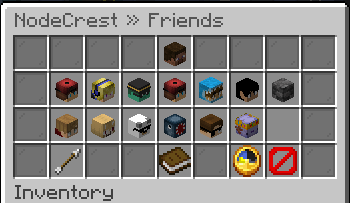
How to Play With Friends on Your NodeCrest SMP
Add friends, accept requests and control who can visit your world. Learn why friendship and world access are separate, and how to join an available friend's SMP.
6 Oct 2026
How to Create Your First Free SMP on NodeCrest
Create a private survival world from the lobby, choose your Minecraft version and learn what to do when your server is starting, sleeping or archived.
6 Oct 2026
Finding Your Way Around the NodeCrest Lobby
Use the lobby menus, profile and navigation commands to reach your world, friends, cosmetics and game modes.
6 Oct 2026