
How to Play With Friends on Your NodeCrest SMP
Add friends, accept requests and control who can visit your world. Learn why friendship and world access are separate, and how to join an available friend's SMP.
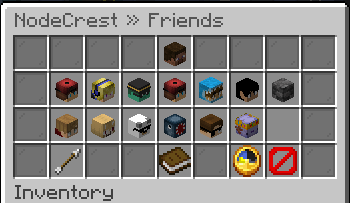
A NodeCrest friendship helps you find each other, but it does not automatically open either player's world. World Visits is a separate permission controlled by the world owner. That makes it easy to play together while keeping access intentional.
Add your friend
Use /friend add <username>, replacing <username> with your friend's Minecraft name. For example, /friend add IUNGO sends IUNGO a friend request.
Open Friends from the lobby's Friends item. Incoming Requests and Sent Requests appear when there are requests to manage:
- In Incoming Requests, left-click a player to accept or right-click to decline.
- In Sent Requests, click a player to cancel your pending request.
After acceptance, you appear in each other's friends lists. You can use the page controls when your list spans multiple pages.
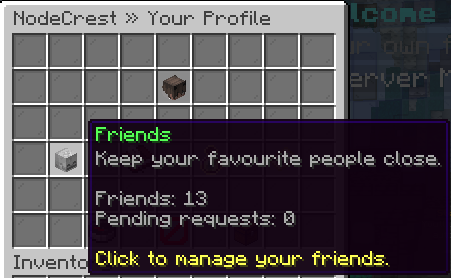 Incoming and sent requests are managed from the Friends menu.
Allow a friend to visit your world
In your friends list, right-click your friend's head to open their settings. Turn World Visits on to allow that friend to visit your world. Turn it off when you want to withdraw that access.
This permission works in one direction. Allowing Alex into your world does not give you access to Alex's world; Alex must separately enable World Visits for you. The Visiting Their World information in friend settings shows whether they have granted you access.
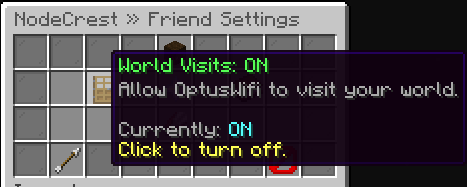 Setting used to toggle World Visit permission
Join your friend's SMP
Your friend should start their world and stay online. Open Friends and hover their head. When they are online and have allowed you to visit, the tooltip can show their world status and configured greeting, alongside available version and player information.
When their world is ready, left-click their head to visit. A friend being online does not necessarily mean their SMP is running: it may be sleeping, starting or restoring. Wait for the world to be ready instead of repeatedly clicking to join. Use a client compatible with the version shown for their world.
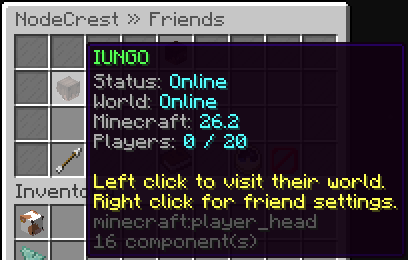 A permitted friend's tooltip shows their available world and its greeting.
If you cannot join, check these three things first: is the owner online, have they enabled World Visits for you, and is their world ready? If those are correct, ask the owner whether they have enabled a separate whitelist or changed other access settings.
Keep your list useful
Favourite Friend keeps someone near the top of your list. It is your own preference; it does not grant access or change their settings.
Remove Friend asks for confirmation before ending the friendship and removing its world-visit permissions. If you simply want to close your world to someone, switch World Visits off instead.
The owner manages the world's gameplay rules. Agree on building permissions, PvP and shared supplies before your first session, and follow the network rules. Need a world of your own? Create your first SMP.
Keep exploring
How to Create Your First Free SMP on NodeCrest
Create a private survival world from the lobby, choose your Minecraft version and learn what to do when your server is starting, sleeping or archived.
6 Oct 2026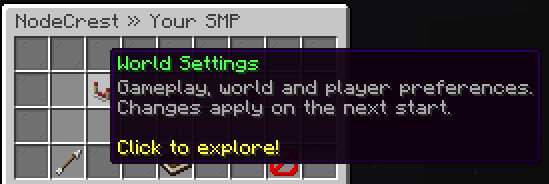
Customize Your SMP With NodeCrest World Settings
Find difficulty, PvP, access and advanced controls in World Settings. Save your choices, understand when they apply and give your world a useful greeting.
6 Oct 2026
Finding Your Way Around the NodeCrest Lobby
Use the lobby menus, profile and navigation commands to reach your world, friends, cosmetics and game modes.
6 Oct 2026